初めに
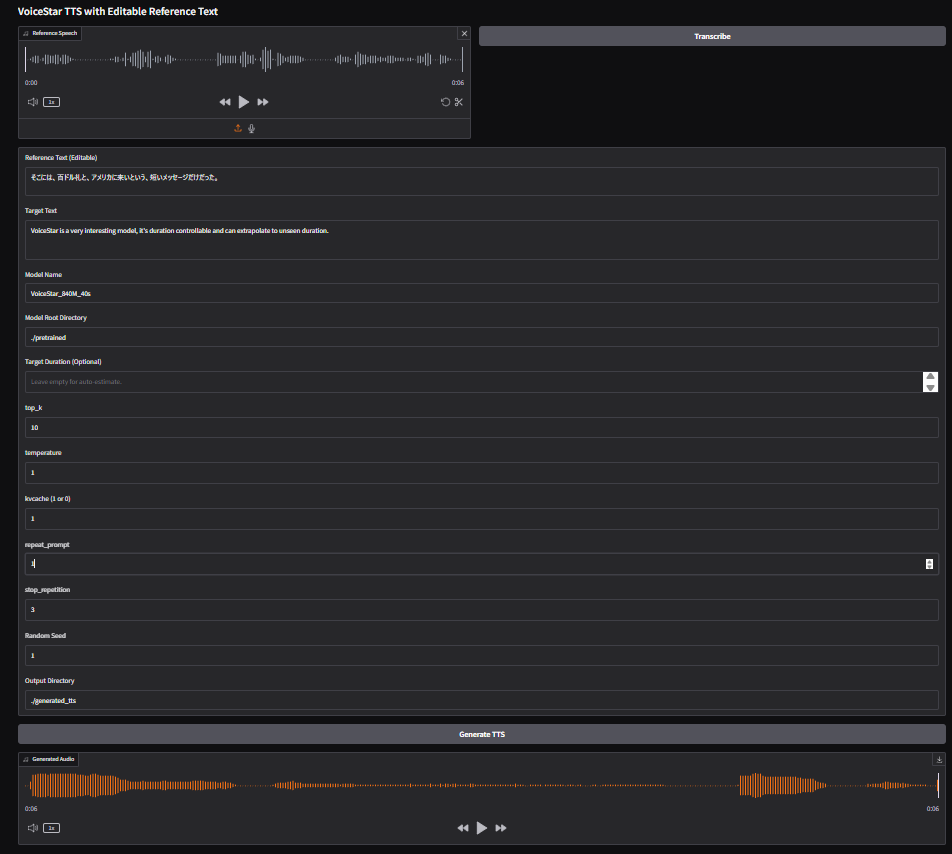
ZeroShotのTTSが出たので触っていきます
リポジトリは以下になります
Docker対応したものは以下で公開しています
備考
Training data. Our training set consists of the English portion of Emilia [68] and a subset of the training splits of Libriheavy and Libriheavy-long [69], totaling 65K hours.
学習データに英語しか入っていないので、英語以外は動かないです
開発環境
- Windows 11
Docker環境の作成
以下のようなDockerファイルを作成します
# Use NVIDIA CUDA base image for GPU support
FROM nvidia/cuda:12.4.0-runtime-ubuntu22.04

# Set environment variables
ENV DEBIAN_FRONTEND=noninteractive
ENV PYTHONUNBUFFERED=1
ENV LANG=C.UTF-8
ENV LC_ALL=C.UTF-8

# Install system dependencies
RUN apt-get update && apt-get install -y \
    python3.10 \
    python3.10-dev \
    python3-pip \
    espeak-ng \
    git \
    wget \
    && rm -rf /var/lib/apt/lists/*

# Set Python 3.10 as default
RUN update-alternatives --install /usr/bin/python python /usr/bin/python3.10 1 && \
    update-alternatives --install /usr/bin/python3 python3 /usr/bin/python3.10 1

# Upgrade pip
RUN pip install --no-cache-dir --upgrade pip

# Set working directory
WORKDIR /app

# Copy requirements first for better caching
COPY requirements.txt .

# Install PyTorch with CUDA support
RUN pip install --no-cache-dir torch==2.5.1 torchaudio==2.5.1 --index-url https://download.pytorch.org/whl/cu124

# Install other Python dependencies
RUN pip install --no-cache-dir -r requirements.txt

# Copy the rest of the application
COPY . .

# Expose Gradio port
EXPOSE 7860

# Default command to run Gradio interface
CMD ["python", "inference_gradio.py"]
またWindowsでpowershellから簡単に実行できるように起動スクリプトを作成します
# VoiceStar Docker起動スクリプト (PowerShell)

# イメージ名
$IMAGE_NAME = "voicestar"

# イメージが存在しない場合はビルド
$imageExists = docker images -q $IMAGE_NAME
if (-not $imageExists) {
    Write-Host "Dockerイメージをビルド中..." -ForegroundColor Yellow
    docker build -t $IMAGE_NAME .
    if ($LASTEXITCODE -ne 0) {
        Write-Host "Dockerイメージのビルドに失敗しました" -ForegroundColor Red
        exit 1
    }
    Write-Host "ビルド完了!" -ForegroundColor Green
}

# コンテナを起動
Write-Host "Dockerコンテナを起動中..." -ForegroundColor Yellow
Write-Host "Gradio UIは http://localhost:7860 でアクセス可能です" -ForegroundColor Cyan

docker run --rm -it `
    --gpus all `
    -p 7860:7860 `
    -v "${PWD}:/app" `
    -v "${PWD}/pretrained:/app/pretrained" `
    -v "${PWD}/generated_tts:/app/generated_tts" `
    $IMAGE_NAME

Write-Host "コンテナを停止しました" -ForegroundColor Yellow
以下のように起動します
.\run.ps1
実行してビルド完了後に起動したら、http://localhost:7860/ にて gradioが開けます